


Share Your Notion Database with Blocky
If your database isn’t showing up when creating a chart in Blocky, it’s likely not shared with Blocky yet.
Tip: With the Notion API, it can take up to 5 minutes for a newly shared database or page to appear in Blocky.
How to Check if Your Database is Shared
- Open Notion and navigate to the page containing your database.
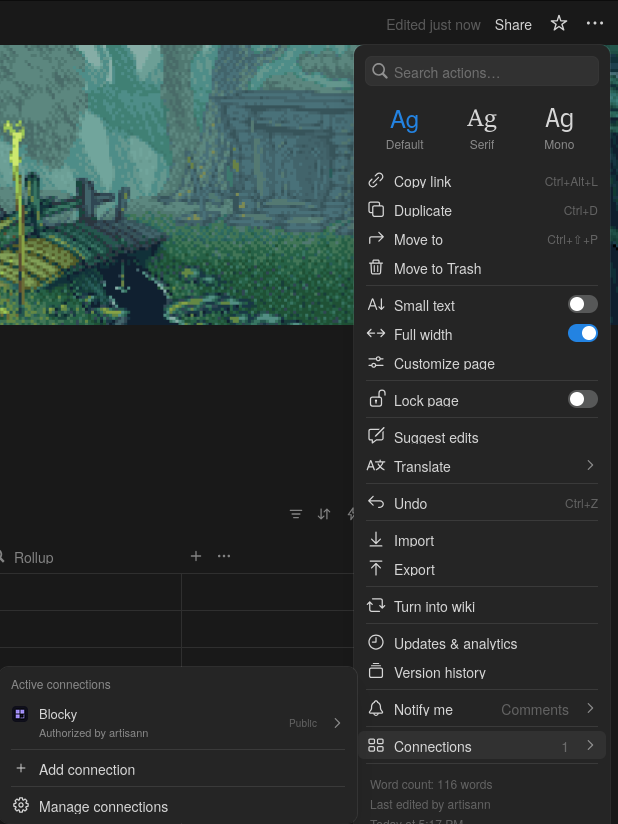
- Click the three dots in the top-right corner.
- Look under the “Connections” section.
- If you don’t see Blocky listed, that page (and its subpages) isn’t available to Blocky yet.
Make Your Database Appear in Blocky
Once you’ve confirmed that Blocky is connected to your page and database, wait a few minutes. The next time you create a chart in Blocky, your database will appear in the dropdown list automatically, allowing you to start visualizing your data instantly.
Other Articles
Filed under Help
RELATED · 03
Related entries

How to Create and Use Notion Widget Codes in Blocky
Learn how to generate, share, and import Notion widget codes in Blocky to duplicate styles, themes, and designs without sharing your data.

Supported Notion Column Types for Blocky Charts
See which Notion property types work with Blocky chart widgets, including label, value, date, select, and rollup fields.

How to Connect Your Notion Workspace to Blocky
Learn how to connect your Notion workspace to Blocky to build custom widgets like charts, flashcards, and quotes using your Notion databases.
Compose · Preview · Embed
Customize a widget, then embed it anywhere in Notion
Shape one of Blocky’s 60+ widgets to your data and layout, preview the result live, then drop the embed link into any Notion page. Sign in to start customizing.
Start customizing